Friday, 13 May 2022
Zabbix Active vs Passive Agent
Tuesday, 6 July 2021
How to configure a host in Zabbix frontend
To configure a host in Zabbix frontend, Follow below steps:
- Go to: Configuration → Hosts
- Click on Create host to the right
- Enter parameters of the host in the form.
Tuesday, 22 June 2021
How to install Zabbix Agent on Linux
Using Zabbix-agent you can monitor CPU load, CPU utilization, Free memory, memory utilization, service status, Free disk space, and many other parameters.
For more information about the installation procedure of zabbix agent, please watch the below YouTube video.
Wednesday, 2 June 2021
How to install Zabbix Server on Ubuntu
Wednesday, 26 May 2021
How to upgrade ubuntu server from Ubuntu 16.04 to Ubuntu 18.04
- Confirm OS version is Ubuntu 16.04 using command lsb_release –a
- Update all the software packages repository list and upgrade packages on the existing system using the below command. It's recommended to reboot the system after all updates are applied.
- Install the Ubuntu Update Manager using the below command.
- Make sure the Prompt line in /etc/update-manager/release-upgrades is set to 'lts' if you only want LTS upgrades.
- Upgrading to Ubuntu 18.04. To begin this process run the following command:
- Before making any changes the above command will first verify whether the system is ready to update or not. The user will get prompted with information about the upgrade. Press Y to continue.
- After you enter the upgrade command, you will be asked to confirm that you want to update via SSH. Type Y to continue.
- The up-gradation process will take some time. During the up-gradation process, you may receive a prompt that will require your input. Kindly select a suitable option for you. You will have to select whether you want to install the new version of the file and overwrite the changes, keep the currently installed version, or merge the files.
- During the upgrade, it will ask to remove obsolete software Press Y to continue.
- After completion of the upgrade process, a system restart will be required.
- Post restart you may verify the Ubuntu version using lsb_release –a.
Friday, 19 February 2021
How to upgrade PostgreSQL9.5 to 12
Wednesday, 23 September 2020
Install PostgreSQL-12, pgAgent and PostGIS in CentOS 7
PostgreSQL is a free and open-source relational database management system and pgAgnet used for scheduling the job. PostgreSQL is also is known as Postgre.
Please find the below steps to install PostgreSQL12, PostGIS, and pgAgnet in CentOS 7.
- Update Cent OS 7 and install EPEL repo
yum updateyum install epel-release
- Add the PostgreSQL12 Repository
You may find the repo of PostgreSQL 12 using link https://www.postgresql.org/download/linux/redhat/
yum install https://download.postgresql.org/pub/repos/yum/reporpms/EL-7-x86_64/pgdg-redhat-repo-latest.noarch.rpm
- Install PostgresSQL12, pgAgnet and PostGIS
yum install postgresql12yum install postgresql12-serveryum install pgagent_12yum install postgis30_12
- Create a PostgreSQL data directory, set permission and set a password for postgres user
By default, Postgres data directory will be initializes at location /var/lib/pgsql/12/data. In this case, we use custom data directory.
mkdir /data/PG_DATA12
chown -R postgres:postgres /data/PG_DATA12
echo "postgres" | passwd --stdin postgres
- Initialize postgres database in a custom directory "/data/PG_DATA12"
su postgres -c "cd /usr/pgsql-12/bin/;./initdb -D /data/PG_DATA12"
- Enable the service
systemctl enable postgresql-12
- Change data directory path in postgresql-12.service
Open file postgresql-12.service which is located at /usr/lib/systemd/system/postgresql-12.service and replace "PGDATA=/var/lib/pgsql/12/data/" with "PGDATA=/data/PG_DATA12/". You may use below command also.
sed -i -e 's#Environment=PGDATA=/var/lib/pgsql/12/data/#Environment=PGDATA=/data/PG_DATA12/#g' /usr/lib/systemd/system/postgresql-12.service
- Reload systemd
systemctl daemon-reload
- Start and enable the service
systemctl start postgresql-12systemctl enable pgagent_12systemctl start pgagent_12
- Change listen address in postgresql.conf
sed -i -e "s/^#listen_addresses = '127.0.0.1'/listen_addresses = '*' /g" /data/PG_DATA12/postgresql.conf
sed -i -e "s/^#listen_addresses = 'localhost'/listen_addresses = '*' /g" /data/PG_DATA12/postgresql.conf
- Change authentication method from ident to trust in pg_hba.conf
sed -i -e "s#host all all 127.0.0.1/32 ident#host all all 127.0.0.1/32 trust#g" /data/PG_DATA12/pg_hba.conf
- Restart postgresql-12 and pgagent_12 service
systemctl restart pgagent_12
- Create an extension for pgAgnet and PostGIS
psql -h localhost -p 5432 -U postgres -d template1 -c "CREATE EXTENSION postgis;"psql -h localhost -p 5432 -U postgres -c "CREATE EXTENSION pgagent;"
- Start service
systemctl start postgresql-12
Tuesday, 19 May 2020
Send Email using PowerShell script
Tuesday, 12 May 2020
How to install CentOS 7
Tuesday, 31 December 2019
Change the remote desktop port on server/desktop
- Start the registry editor (Type regedit in the Search box.) or type regedit in Run and click on OK.
- Navigate to the following registry subkey:
- Click Edit > Modify, and then click Decimal.
- Type the new port number above 1024, and then click OK.
- Close the registry editor, and restart your computer/server.
Thursday, 23 May 2019
How to set a Static IP Address on CentOS-7
To list the network interfaces you need to type the following command:
~]$ ip a
DHCP Configuration for ens33 stored in file ifcfg-ens33 and the same is located at directory /etc/sysconfig/network-scripts/. It's look like below.
~]$ vi /etc/sysconfig/network-scripts/ifcfg-ens33
~]$ systemctl restart network
~]$ ifdown ens33
~]$ ifup ens33
~]# yum install NetworkManager-tui
~]$ nmtui
~]$ nmtui editens33
Thursday, 21 September 2017
How to find Wi-Fi password
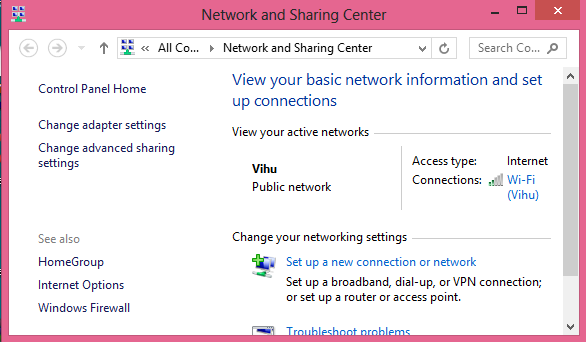
Now click on connected WiFi.
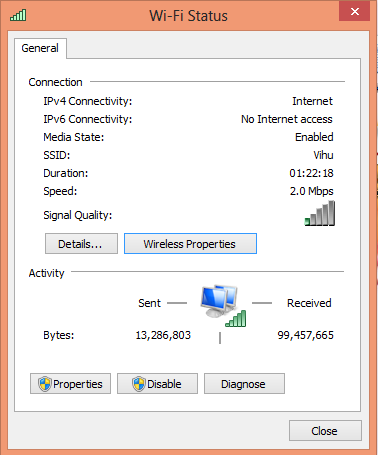
Click on "Wireless Properties" in "Wi-Fi Status" Window.
Click On the "Security" Tab and enable the "Show Characters (Check Box)" to view the password.
Using Command Prompt
Using command prompt you may able to find any previously connected WiFi password.
You need to open command prompt with admin rights. Then Type below command.
netsh wlan show profiles
It will list the all previously connected WiFi network. To find the password of particular profile type below command with replacing the profilename with profile.
netsh wlan show profile name=profilename key=clear
Above command list all setting related to particular profile. Look for the "key content" to find the WiFi password for selected WiFi Network.
Saturday, 20 May 2017
Action to be taken to avoid WannaCry ransomware
- Patched your system/server with microsoft MS17-010 update.
- Block the TCP port 445, 137, 138, 139 in firewall.
- Make sure you system is updated with latest antivirus definitions.
- Don’t open any mail in Spam or Mail which has come from Unknown Source.
- Download software only form OEM site.
- Turn on protected file sharing.
- Block the TCP port 445, 137, 138, 139 in firewall.
- Disable autorun (USB/USB).
- Turn on popup blocker in browser.
- Avoid giving unnecessary administrative rights to user.
- https://technet.microsoft.com/en-us/library/security/ms17-010.aspx
- http://blog.talosintelligence.com/2017/05/wannacry.html
- https://www.symantec.com/security_response/writeup.jsp?docid=2017-051310-3522-99&tabid=3
Saturday, 7 January 2017
Install .NET framework 3.5 in windows 10 - Offline Method
To overcome this problem, windows has feature call Deployment Image Servicing and Management (DISM.exe) by using this you may install .net 3.5 framework. To use this feature you need the Windows 10 OS media.
To install net 3.5 framework using DISM.exe, follows below steps.
- Open Command Prompt as administrator. You may do this by click All Programs, and then click Accessories, Right-click Command prompt, and then click Run as administrator. If UAC dialog box appears then click on Yes to confirm.
- Now write below in cmd.
Dism /online /enable-feature /featurename:NetFX3 /All /Source:DriveLater:\sources\sxs /LimitAccess
Where DriveLater is latter which windows assign to your windows 10 OS media.
Friday, 25 November 2016
How to start browser in kiosk mode
To start Chrome in kiosk mode, you need to create shortcut for chrome. You may create shortcut by navigation to the chrome installation directory (i.e. C:\Program Files\Google\Chrome\Application) and right-click on chrome.exe. After right click do this: Send to > Desktop.
After creating a shortcut of chrome, do the below step.
- Go to the properties of the shortcut (using right click on shortcut > properties).
- Suppose you want to open web site "www.digneshptl.blogspot.in" in kisok mode. Then you need to add -kiosk www.digneshptl.blogspot.in in Target filed of the shortcut tab.
"C:\Program Files\Google\Chrome\Application\chrome.exe" -kiosk www.digneshptl.blogspot.in
iexplore.exe -k url
You may also create shortcut and put into startup. So that it will open in kiosk mode at starting of the system.
Saturday, 25 June 2016
How to get hostname or MAC address using IP address of the system
To find hostname or mac address of system you must know the ip address of the system.Use below command to find
nbtstat -a IP address of the remote system
suppose you want to find hostname and mac address of the system which is having ip address 172.16.16.16. You need to use command nbtstat -a 172.16.16.16 and output of command shown below.
Monday, 11 April 2016
How to Unhide Permanently hidden file
- Go to Control Panel > Folder Options
- Now in Folder Options go to View Tab.
- Now Select "Show hidden Files, Folders and Drives" radial button and also Uncheck "Hide protected operation system files".
- Then click on Apply and Ok Button.
Tuesday, 22 March 2016
Set IP Address using command in Windows
Saturday, 12 March 2016
Find Lost Android Cell Phone Easily
Saturday, 26 September 2015
Download YouTube video online
- Browse for the video, you want to download.
- Copy full URL of video and paste it in savefrom.net website. Now click on download button and video downloading will start.